
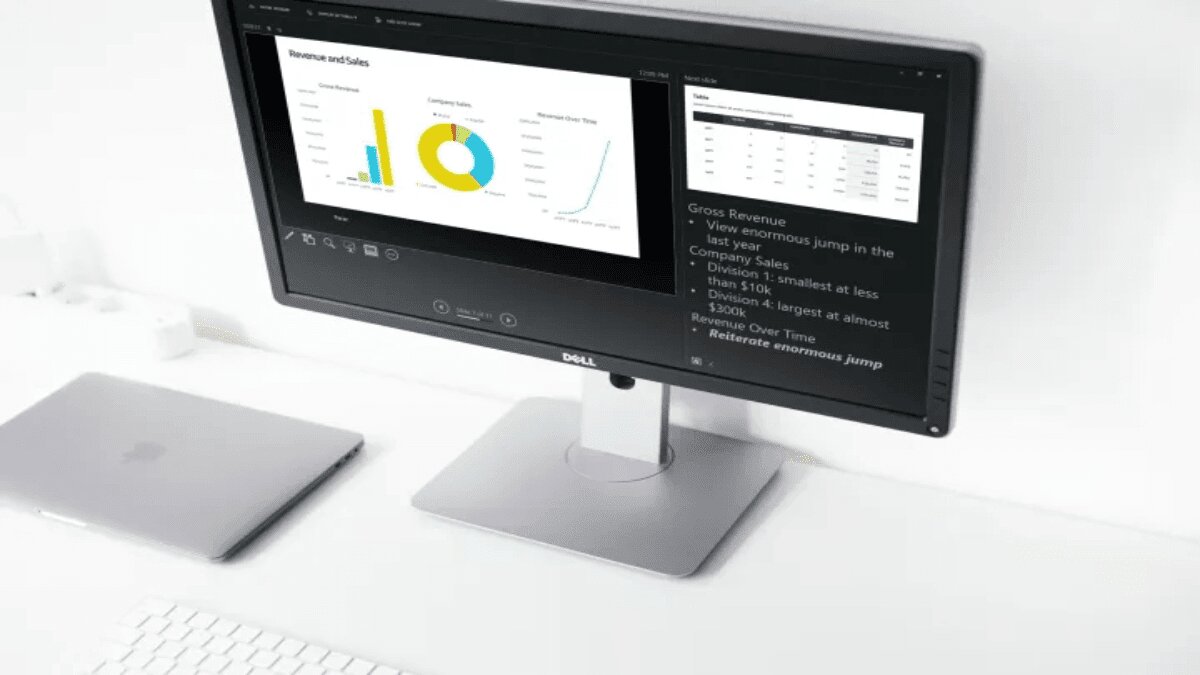
When you give a presentation, you probably have more to say than just what’s on your slides. You might want to elaborate on the text or explain any visuals in more detail. Luckily, Microsoft PowerPoint has a handy feature for this called speaker notes.
Add Speaker Notes to a Slide in PowerPoint
- Open Your Presentation:
- Start by opening your PowerPoint presentation and select the slide where you want to add notes.
- Choose Your View:
- Go to the View tab and select either Normal or Outline View. This will show your slide alongside a section where you can add your notes.
If you prefer not to change views, you can also use the Notes Page view, which displays your slide and a text box for your notes as if it were a printed page.
- Display the Notes Panel:
- If the notes panel isn’t visible, click the Notes button at the bottom of the screen or drag the bottom edge of the window upward until the notes panel appears.
- Add Your Notes:
- Click in the panel that says “Click to Add Notes” and start typing. You can format your notes with tools from the Home tab, like bullet points or bold text, if needed.
- Adjust and View Notes:
- If your notes are long, use the scrollbar on the right to navigate through them. You can also drag the notes panel to make it larger. Consider printing your presentation with the notes for a backup copy.
Hide Notes While Editing
If you want a clearer view of your slide while working on it, you can hide the notes panel. This doesn’t delete your notes; it just moves the panel out of sight.
- To hide the notes, either click the Notes button or drag the notes panel down until it’s no longer visible.
View Speaker Notes During a Slideshow
When you’re ready to present, you can use Presenter View to see your notes on your screen while your audience only sees the slides.
- Enable Presenter View:
- Go to the Slide Show tab. On Windows, check the box for Use Presenter View in the Monitors section. On Mac, click Presenter View in the Start Slide Show section.
If you’re already presenting, click the three dots on the Presenter Toolbar and select Show Presenter View (Windows) or Use Presenter View (Mac).
- See Your Notes:
- In Presenter View, your notes will appear on the right side of the screen, with your slide on the left. As you move through the slides, your notes will update accordingly.
- Adjust Note Visibility:
- Your notes will automatically wrap text to fit the space, and you can scroll through long notes. Adjust the font size using the buttons below the notes panel if needed.
Adding and using speaker notes in PowerPoint can make your presentations smoother and help you keep track of what you want to say. Make sure to take advantage of this feature to enhance your slides and improve your overall presentation.
